> For the complete documentation index, see [llms.txt](https://learn.bluefin.io/bluefin/llms.txt). Markdown versions of documentation pages are available by appending `.md` to page URLs; this page is available as [Markdown](https://learn.bluefin.io/bluefin/bluefin-perps-exchange/getting-started/depositing-and-set-up.md).
# Depositing & Set Up
Perpetual contracts on Bluefin v2 are collateralized using the [`USDCeth`](https://suiscan.xyz/mainnet/coin/0x5d4b302506645c37ff133b98c4b50a5ae14841659738d6d733d59d0d217a93bf::coin::COIN/txs) token (also called **wUSDC**, which is USDC bridged from Ethereum through Wormhole). To trade on the Bluefin v2 exchange, you will need a supported wallet and funds to be used as collateral. You can either bridge funds from another network to the Sui network or on-ramp directly onto Sui.
### **Bridge USDC using the integrated bridge**
Bluefin provides an interface for the Portal Token Bridge powered by Wormhole, allowing users to bridge assets from Ethereum to Sui and vice-versa while remaining on the exchange. To use the integrated bridge, you will need to take the following steps:
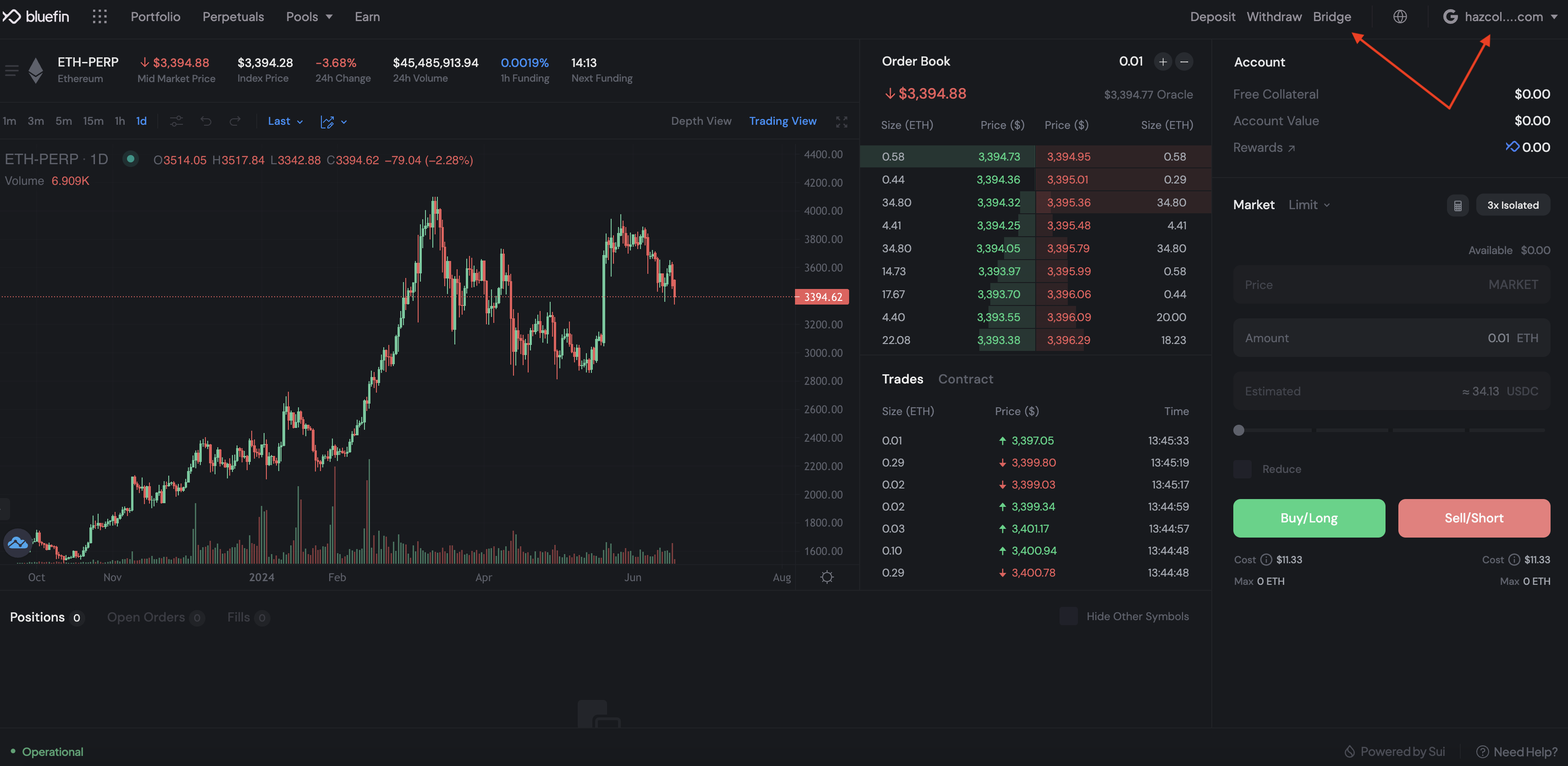
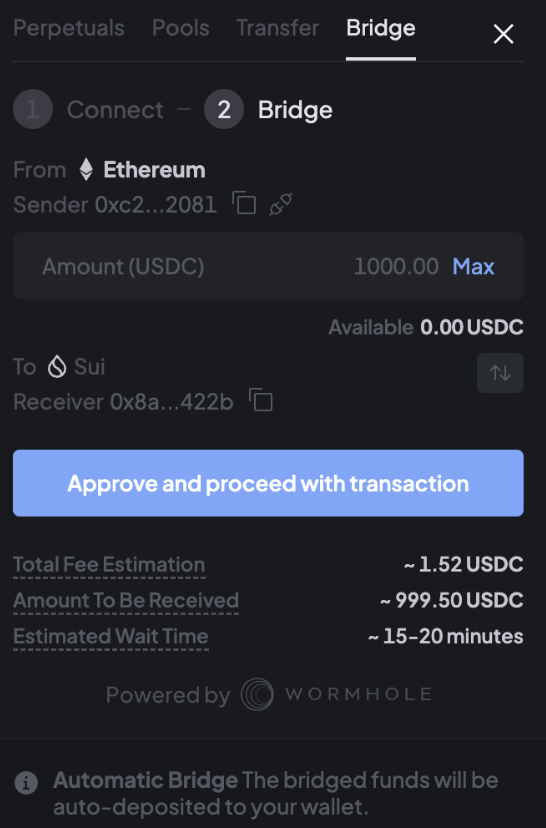
1. Connect your wallet to the exchange and click on the Bridge button.
2. Click on the connect wallet button to link your Metamask wallet. Once connected, you will see your Metamask address, and the Blue button change to Approve and proceed with transaction.
3. Enter the wUSDC amount you wish to transfer. Review the transfer details. Click on the Approve and proceed with transaction button. If prompted, approve transaction requests in your wallet application.
4. Click on the Wormhole scan link to track the transaction's progress. You will also be notified on the exchange when the transfer is complete.
5. You are now ready to deposit wUSDC onto Bluefin and start trading.
### **Bridge USDC using Wormhole**
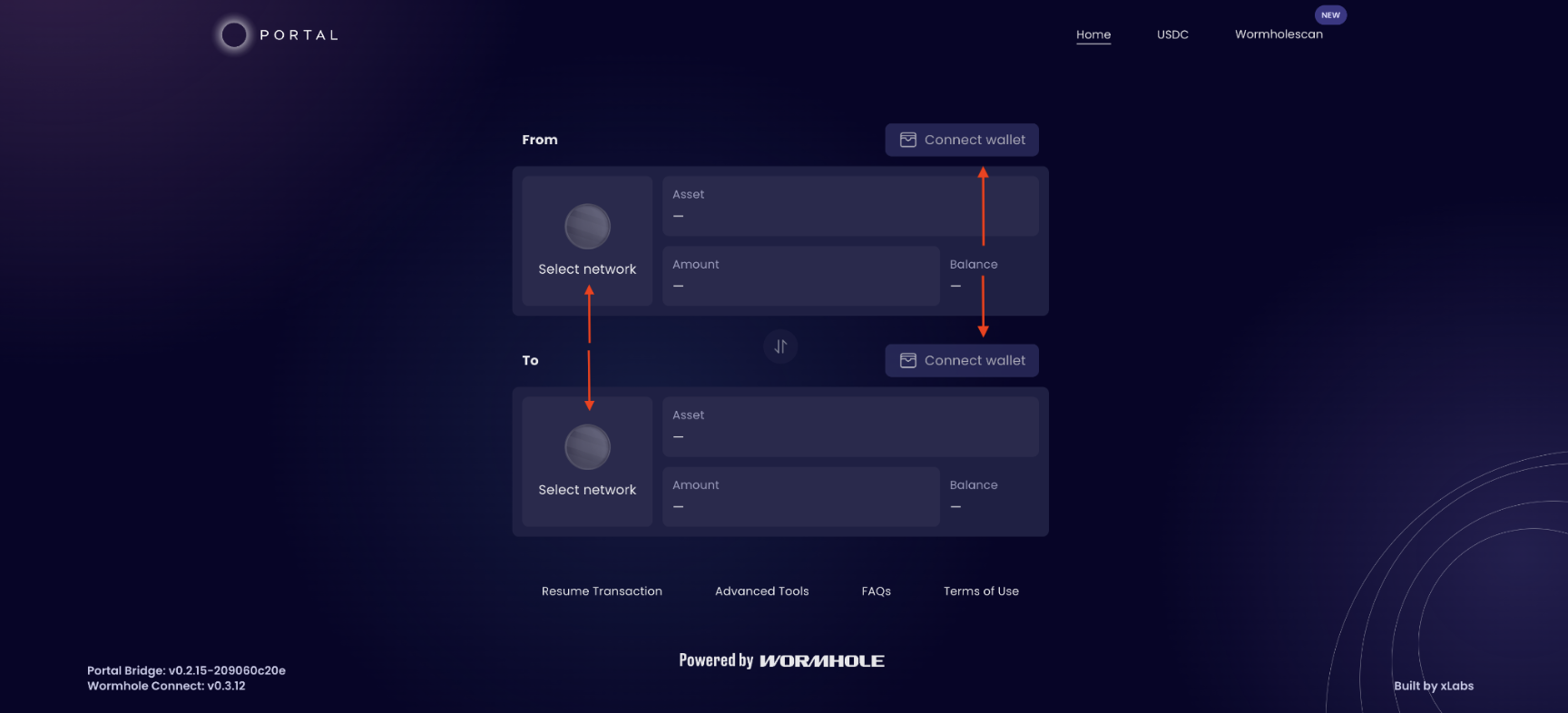
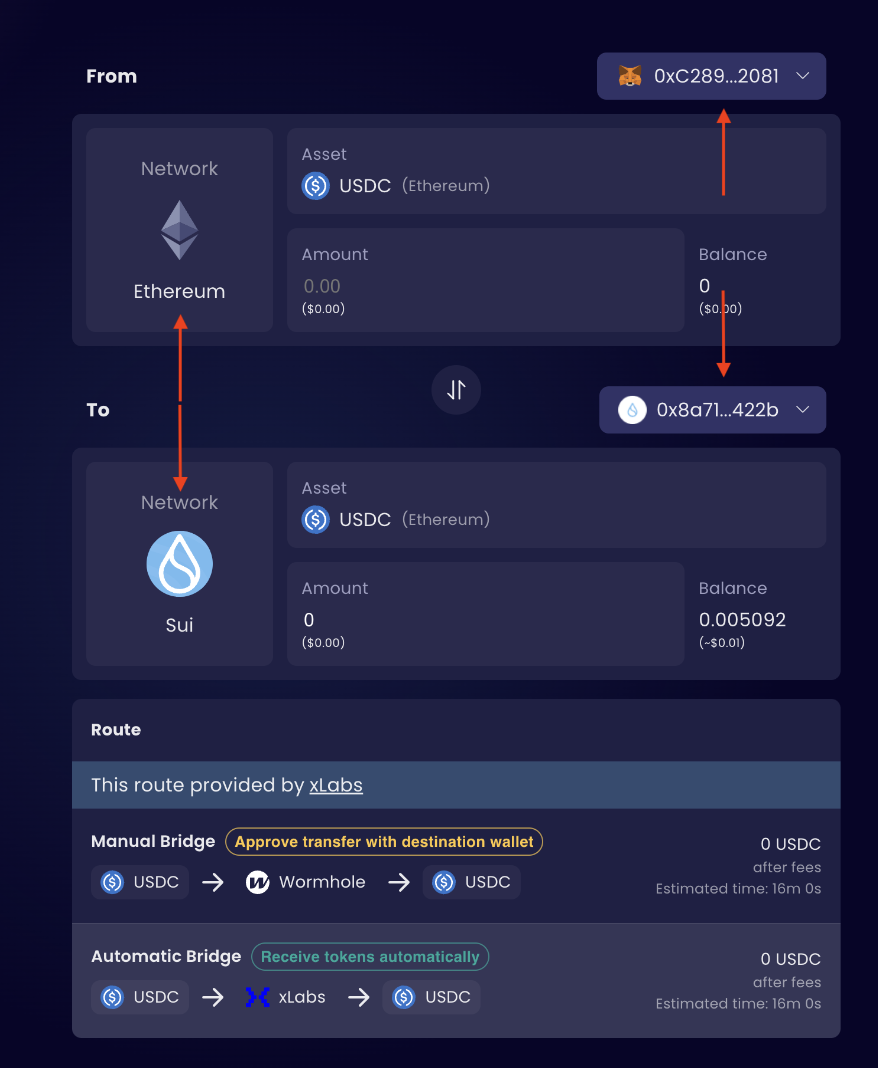
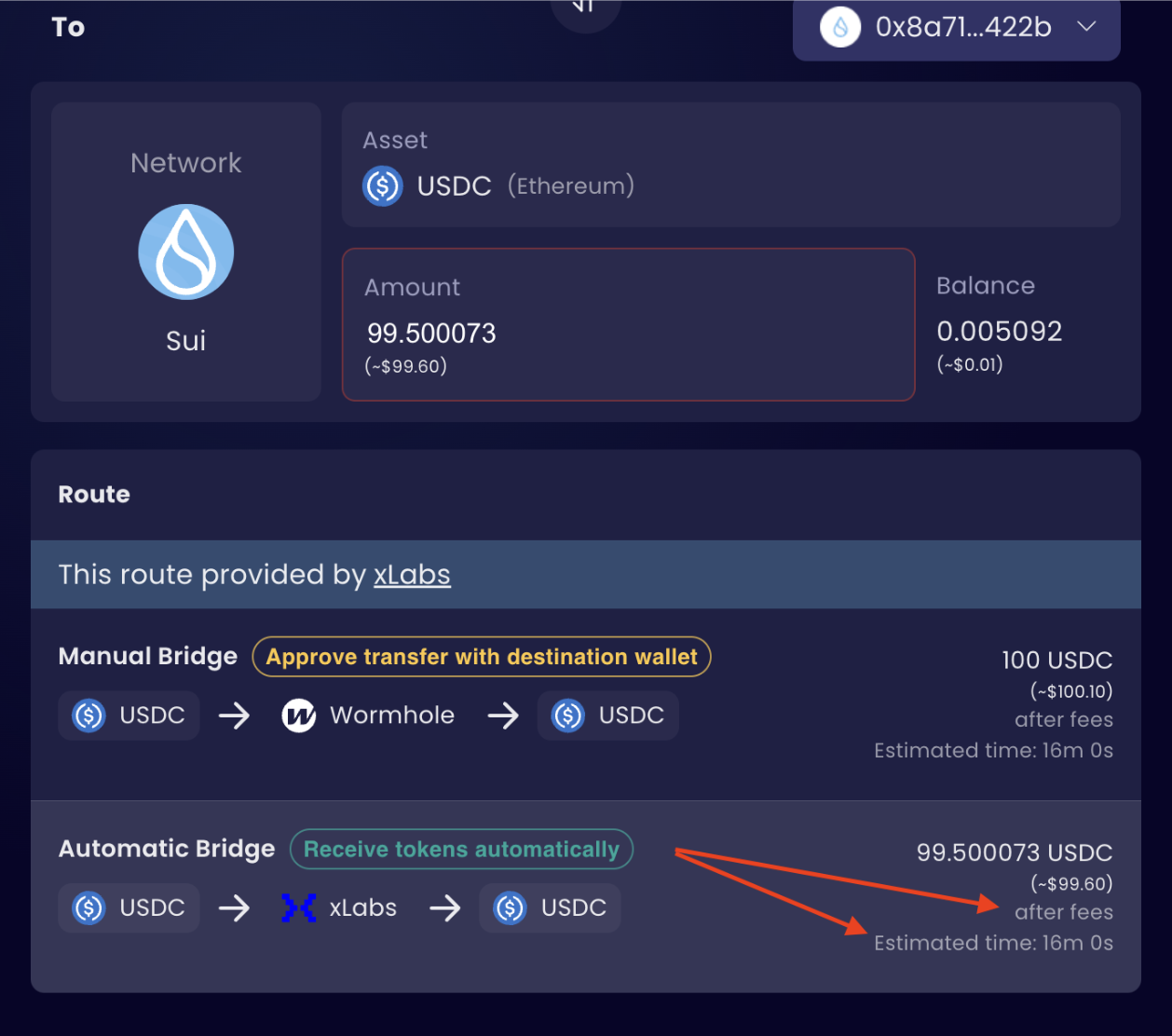
1. Go to and select the networks you wish to bridge between. In this example, we will bridge funds from Ethereum to Sui. Connect the wallet you want to bridge funds from (Metamask) to your Sui wallet.
2. You will then see the networks you are bridging between and the wallets you have selected. Now select USDC (Ethereum) as the asset you wish to bridge to your Sui wallet.
3. Select the amount of USDC you wish to bridge. Transaction time and fees can vary depending on the chain you are bridging from.
4. Now you have wUSDC (Ethereum) in your Sui wallet and you are ready to deposit in Bluefin.
### **Further steps for swapping bridged assets other than wUSDC (Ethereum)**
5. If you have bridged any other asset, or if you have native assets on the chain (like SUI or Native USDC), you will need to swap these for wUSDC (Ethereum) before you can deposit on Bluefin.
6. Go to Bluefin's Spot CLMM Swap at [https://trade.bluefin.io/swap](https://trade.bluefin.io), connect your wallet and select the asset you want to swap. You can use either External Liquidity (routed from external sources) or Bluefin Only Liquidity (from Bluefin's own Liquidity Pools) and the swap amount based on which option gives you a better Price Difference (shown at the bottom of the form).
7. You are now ready to fund your Bluefin account!
### **Depositing funds on Bluefin**
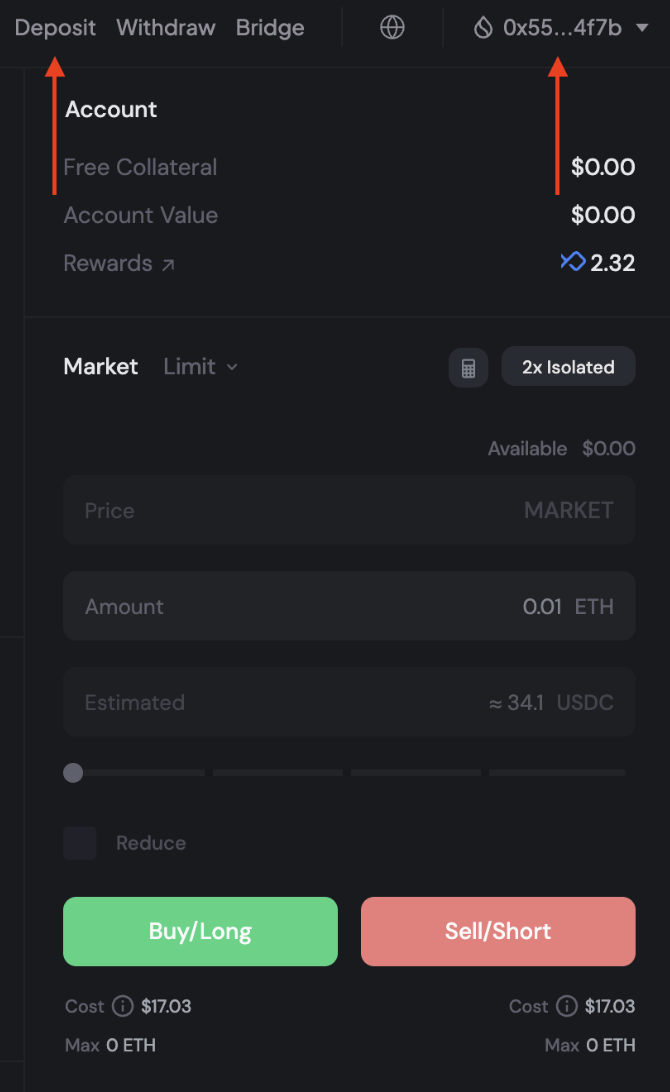
1. Go to and onboard to the exchange. To do this, select Connect Account. Select Sui Wallet
2. You will then see your wallet connected in the top right. Following this, select Deposit.
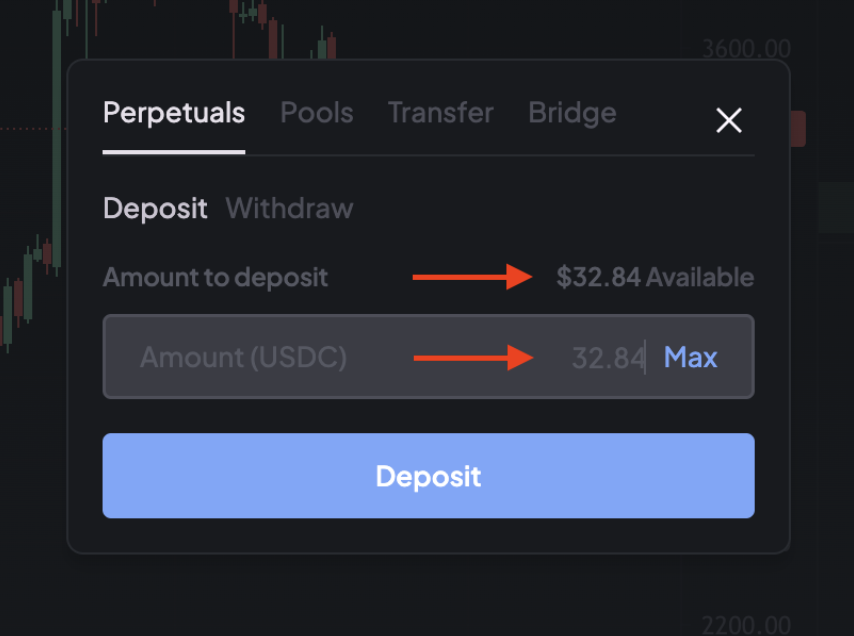
3. You will then be shown your Available amount to deposit in USDC. You can then enter the amount you want to deposit. Hit the deposit button.
4. Sign the transaction in your Sui wallet, and the balance will appear in your Account at the top right of the Bluefin exchange.